M.A Al-Noman

Dhaka, bangladesh

Get Update on our recent Tips & Posts

Showing posts with label Computer tips. Show all posts

Saturday, May 19, 2018

How to automatically dial a broadband PPPoE connection in Windows 10

 
In a previous tutorial we've shown you how to set, configure and connect to a broadband PPPoE connection in Windows 10. While the whole process of connecting is easy, it does need to be performed manually, each time you want to connect to the Internet. That also means that you have to manually start your broadband PPPoE connection each time you boot your Windows 10 computer. That's an extra step that many of our readers won't want to make and we would like to share a way to make a Windows 10 computer automatically dial a broadband PPPoE connection, during startup. We've looked for a method that works well and here it is:
NOTE: In this guide, we assume that you have already created and configured a broadband PPPoE connection on your Windows 10 computer. If you did not, you might want to check this tutorial first: How To Setup And Use PPPoE Internet Connections In Windows 10.
In order to make your Windows 10 computer automatically dial your broadband PPPoE connection each time it starts, you will have to go through a few steps that involve setting a scheduled task:

Step 1. Launch the Task Scheduler in Windows 10

First, you need to start the Task Scheduler. A fast way to do that is to use Cortana's search box. Use it to type the words "task scheduler" and then, from the list of search results, click or tap Task Scheduler.
Windows 10, PPPoE, automatic, dial, startup
You can also launch Task Scheduler from the Start Menu. Open All apps , go to Windows Administrative Tools and click or tap on Task Scheduler.
Windows 10, PPPoE, automatic, dial, startup
If you prefer using the traditional Control Panel , you can launch Task Scheduler by going to: Control Panel -> System and Security -> Administrative Tools.
Windows 10, PPPoE, automatic, dial, startup
Regardless of the method you chose to follow in order to launch the Task Scheduler , this is what you should get:
Windows 10, PPPoE, automatic, dial, startup

Step 2. Schedule the automatic dial of a broadband PPPoE connection, each time you log into Windows 10

Now you have to schedule the automatic dial of your broadband PPPoE connection, each time you log into Windows 10.
In the Task Scheduler , click or tap on the Create Basic Task… option from the right side of the window.
Windows 10, PPPoE, automatic, dial, startup
This action will open the Create Basic Task Wizard.
The first thing you need to do is enter a name for your task. The name we used, for instance, is "Auto Dial - Broadband Connection". If you want, you can also enter a Description , but that's entirely optional. Then, press Next.
Windows 10, PPPoE, automatic, dial, startup
Next, you must choose when the scheduled task will be triggered. To make your broadband PPPoE connection dial automatically, each time you log into Windows 10, you should select the "When I log on"option. Then, press Next.
Windows 10, PPPoE, automatic, dial, startup
And now comes the most important part of the schedule wizard - choosing the action to be run. As we want to automatically dial a broadband PPPoE connection, we must find a way to tell that to Windows 10. Start by choosing to "Start a program".
Windows 10, PPPoE, automatic, dial, startup
Once you press Next , the wizard will ask you what Program / Script you want to execute on a scheduled basis.
In order to make Windows 10 automatically dial a broadband PPPoE connection, when you log into your Windows 10 computer, you must enter the following information:
  1. In the "Program/script" field, enter the command: rasdial.
  2. In the "Add arguments (optional)" field, enter the name of your broadband PPPoE connection, between quotation marks, followed by your broadband connection username and password, each with a space before them. For instance, let's say that your broadband PPPoE connection has the default name of Broadband Connection, your username is NY123456, and your broadband connection password is NewYork. In such a case, the "Add arguments (optional)" field should contain this text: "Broadband Connection" NY123456 NewYork.
  3. Leave the "Start in (optional)" field empty.
Windows 10, PPPoE, automatic, dial, startup
Then, once you press the Next button, the Create Basic Task Wizard will give you a summary of your newly created scheduled task. Check that everything is OK and click or tap Finish.
Windows 10, PPPoE, automatic, dial, startup
When you close the wizard, you will be brought back to the main Task Scheduler console, where you can see that your new task has been added to the list of scheduled tasks.
Windows 10, PPPoE, automatic, dial, startup

Step 3. Reboot your Windows 10 computer or device

Finally, all you there's left for you to do is reboot your Windows 10 device and see how your newly scheduled task is run . Note that, depending on how fast the dialing process is performed, when you log into your Windows 10 computer, you might briefly see a window similar to the one below.
Windows 10, PPPoE, automatic, dial, startup
The broadband PPPoE connection should now be automatically dialed each time you log into Windows 10.

Conclusion

While it does require some advanced steps for you to t ake , configuring Windows 10 so that it automatically dials a broadband PPPoE connection when you log in can be done by anyone, if you follow this guide carefully. Once you've created your scheduled task, everything should work well and you'll get almost instant Internet access each time you log into Windows 10. If you have any questions or issues, you can always get in touch with us using the comments form below.

How to setup and use PPPoE internet connections in Windows 10

 
Many Internet Service Providers (ISPs) from around the world offer their internet services to residential users through Point-to-Point Protocol over Ethernet or PPPoE connections. In order to be able to use such internet connections, the ISP usually gives you a unique username and password that you must use to connect to their network. In this tutorial we're going to show you all the steps you need to take in order to properly configure your Windows 10 device to connect to the internet through PPPoE .

How to launch the “Connect to the Internet” wizard

To be able to setup a PPPoE connection in Windows 10, you will first have to launch the "Connect to the Internet" wizard. To begin, launch Settings.  If you're in a hurry and don’t have time to read that article, a quick way to open the Settings app in Windows 10 is to click or tap on its shortcut from the Start Menu.

Windows 10, PPPoE, connection, create, configure


Inside Settings , head to the Network & Internet section.

Windows 10, PPPoE, connection, create, configure

Then, select Dial-up from the list of options on the left.

Windows 10, PPPoE, connection, create, configure

On the right side of the window, click or tap on the " Set up a new connection" link from the Dial-upsection.

Windows 10, PPPoE, connection, create, configure

The "Set Up a Connection or Network" wizard opens.

Windows 10, PPPoE, connection, create, configure

There is also another way of opening the "Connect to the Internet" wizard: by using the Control Panel. Then, open Network and Internet , and click or tap on the Network and Sharing Center.

Windows 10, PPPoE, connection, create, configure

Here, click or tap on the " Set up a new connection or network" link, from the " Change your networking settings" section.

Windows 10, PPPoE, connection, create, configure

Regardless of the method you chose to launch the " Connect to the Internet" wizard, the following steps you'll have to take are the same. Here's what you have to do:

How to setup a PPPoE internet network connection in Windows 10

From the list of available connection options, select " Connect to the Internet" , and click or tap the Nextbutton.

Windows 10, PPPoE, connection, create, configure

In the " Connect to the Internet" window, click or tap on Broadband (PPPoE).

Windows 10, PPPoE, connection, create, configure

We've now arrived at the place where you provide the settings of your PPPoE connection. The most important things to do are to type the User name and Password given to you by your ISP.

Windows 10, PPPoE, connection, create, configure

You'll also find some additional options that you can change:
  • You can check the “ Show characters” option if you want to see your password, to be sure that you typed it correctly.
  • If you don't want your Windows 10 computer to ask you for your password each time you connect to the internet, you can set it to " Remember this password".
  • By default, Windows 10 gives your PPPoE connections the name Broadband Connection. However, if you'd like to use another name, enter the one you want in the Connection name text field.
  • Finally, if you want your newly set PPPoE connection to be available for all the people who have access to your computer, check the last option that says: " Allow other people to use this connection". However, note that, in order to be able to enable this option, you'll need to have administrative rights.
Once you've made all the settings, click or tap on Connect to initiate the PPPoE connection .

Windows 10, PPPoE, connection, create, configure

The wizard will go through a few steps, like verifying your username and password and testing your internet connection.

Windows 10, PPPoE, connection, create, configure

If everything worked well, the wizard will notify you that now "The connection to the Internet is ready to use".

Windows 10, PPPoE, connection, create, configure

Next, if you click or tap on the " Browse the Internet now" , Windows 10 will open your default browser and you can start surfing the web. The other option you have is to simply close the wizard. The PPPoE connection is now up and running, so you can go ahead and use any web browser, or any app or program that needs Internet access.

How to connect to a PPPoE internet connection in Windows 10

Now that you've set up your PPPoE network connection, you can use it anytime you want to access the internet. But there is a catch: to be able to use it, you will need to connect to it each time you need it. Here's how to do that:
Click or tap on the Network icon from the notification area on your taskbar, and then click or tap on the PPPoE connection you want to connect to. If you didn't change its default name, the connection should be called Broadband Connection.

Windows 10, PPPoE, connection, create, configure

The previous action will trigger the launch of the Settings app and take you to the Dial-up section. In here, click or tap on your PPPoE connection, found on the right side of the window.

Windows 10, PPPoE, connection, create, configure

To initiate the PPPoE connection, click or tap on Connect.

Windows 10, PPPoE, connection, create, configure

If you asked Windows 10 to remember your PPPoE connection credentials when you've set the connection, then your computer will automatically connect to the internet. However, if you did not make that selection, you will now have to enter the username and password for the PPPoE connection.

Windows 10, PPPoE, connection, create, configure

Either way, once your Windows 10 computer is connected, you'll be brought back to the Network & Internet section of the Settings app. Here, you can see the Connected message displayed under your PPPoE connection.

Windows 10, PPPoE, connection, create, configure

How to disconnect from a PPPoE internet connection in Windows 10

To disconnect from a running PPPoE connection in Windows 10, you'll have to follow the exact same steps we've shown in the previous section of this tutorial. That means you'll have to click or tap on the Networks icon from your taskbar, and then click or tap on your PPPoE connection. And finally, once you've reached the Dial-up options, instead of pressing the Connect button, you will need to click or tap on Disconnect.

Windows 10, PPPoE, connection, create, configure

There are no other steps involved in this process. Once you've pressed Disconnect , Windows 10 will simply close the connection.

How to delete a PPPoE connection from Windows 10

At some point you might decide to completely remove a PPPoE connection you've set up on your Windows 10 computer. To do that, open the Settings app, then go to the Network & Internet section and head to your Dial-up options.
Here, if needed, disconnect from your PPPoE connection, and then click or tap on the Remove button.

Windows 10, PPPoE, connection, create, configure

Windows 10 will notify you that "If you remove this VPN connection, you'll need to set it up again to reconnect". As you might have noticed, there's a small typo in Windows 10's message: it says VPN, but in fact you'll be removing your PPPoE broadband connection. :)
If you're sure that you want to continue, click or tap on Remove and the PPPoE connection will be permanently deleted.

Windows 10, PPPoE, connection, create, configure

Conclusion

As you've seen in this guide, setting up, using and removing PPPoE broadband connections in Windows 10 are all easy things to do. However, we must admit that we would've liked it better if all the connecting and disconnecting could be done straight from the Networks popup on the taskbar. Having to go through the Settings app to do that seems an unnecessary annoyance in our opinion. What do you think?

Friday, November 17, 2017

বাংলা টাইপিং এ যারা দুর্বল তাদের কাজে লাগবে।


১. ক্ষ = ক+ষ
২. ষ্ণ = ষ+ণ
৩. জ্ঞ = জ+ঞ
৪. ঞ্জ = ঞ+জ
৫. হ্ম = হ+ম
৬. ঞ্চ = ঞ+চ
৭. ঙ্গ = ঙ+গ
৮. ঙ্ক = ঙ+ক
৯. ট্ট = ট + ট
১০. ক্ষ্ম = ক্ষ + ম = ‍ক + ষ + ম
১১. হ্ন = হ + ন
১২. হ্ণ = হ + ণ
১৩. ব্ধ = ব + ধ
১৪. ক্র = ক + ্র (র-ফলা)
১৫. গ্ধ = গ + ধ
১৬. ত্র = ত + ্র (র-ফলা)
১৭. ক্ত = ক + ত
১৮. ক্স = ক + স
১৯. ত্থ = ত + থ (উদাহরন: উত্থান, উত্থাপন)
২০. ত্ত = ত + ত (উদাহরন: উত্তম, উত্তর, সত্তর)
২১. ত্ম = ত + ম (উদাহরন: মাহাত্ম্য) নিচের যুক্তবর্ণের তালিকাটি বাংলা সঠিকভাবে লিখিত সহায়ক হতে পারে।  এখানে বাংলায় ব্যবহৃত
২৮৫টি যুক্তবর্ণ দেওয়া হয়েছে। এর বাইরে কোন যুক্তবর্ণ সম্ভবত বাংলায় প্রচলিত নয়।
ক্ক = ক + ক; যেমন- আক্কেল, টেক্কা
ক্ট = ক + ট; যেমন- ডক্টর (মন্তব্য: এই যুক্তাক্ষরটি মূলত ইংরেজি/ বিদেশী কৃতঋণ শব্দে ব্যবহৃত)
ক্ট্র = ক + ট + র; যেমন- অক্ট্রয়
ক্ত = ক + ত; যেমন- রক্ত
ক্ত্র = ক + ত + র; যেমন- বক্ত্র
ক্ব = ক + ব; যেমন- পক্ব, ক্বণ
ক্ম = ক + ম; যেমন- রুক্মিণী
ক্য = ক + য; যেমন- বাক্য
ক্র = ক + র; যেমন- চক্র
ক্ল = ক + ল; যেমন- ক্লান্তি
ক্ষ = ক + ষ; যেমন- পক্ষ
ক্ষ্ণ = ক + ষ + ণ; যেমন- তীক্ষ্ণ
ক্ষ্ব = ক + ষ + ব; যেমন- ইক্ষ্বাকু
ক্ষ্ম = ক + ষ + ম; যেমন- লক্ষ্মী
ক্ষ্ম্য = ক + ষ + ম + য; যেমন- সৌক্ষ্ম্য
ক্ষ্য = ক + ষ + য; যেমন- লক্ষ্য
ক্স = ক + স; যেমন- বাক্স
খ্য = খ + য; যেমন- সখ্য
খ্র = খ+ র যেমন; যেমন- খ্রিস্টান
গ্ণ = গ + ণ; যেমন - রুগ্ণ
গ্ধ = গ + ধ; যেমন- মুগ্ধ
গ্ধ্য = গ + ধ + য; যেমন- বৈদগ্ধ্য
গ্ধ্র = গ + ধ + র; যেমন- দোগ্ধ্রী
গ্ন = গ + ন; যেমন- ভগ্ন
গ্ন্য = গ + ন + য; যেমন- অগ্ন্যাস্ত্র,
অগ্ন্যুৎপাত, অগ্ন্যাশয়
গ্ব = গ + ব; যেমন- দিগ্বিজয়ী
গ্ম = গ + ম; যেমন- যুগ্ম
গ্য = গ + য; যেমন- ভাগ্য
গ্র = গ + র; যেমন- গ্রাম
গ্র্য = গ + র + য; যেমন- ঐকাগ্র্য, সামগ্র্য,
গ্র্যাজুয়েট
গ্ল = গ + ল; যেমন- গ্লানি
ঘ্ন = ঘ + ন; যেমন- কৃতঘ্ন
ঘ্য = ঘ + য; যেমন- অশ্লাঘ্য
ঘ্র = ঘ + র; যেমন- ঘ্রাণ
ঙ্ক = ঙ + ক; যেমন- অঙ্ক
ঙ্ক্ত = ঙ + ক + ত; যেমন- পঙ্ক্তি
ঙ্ক্য = ঙ + ক + য; যেমন- অঙ্ক্য
ঙ্ক্ষ = ঙ + ক + ষ; যেমন- আকাঙ্ক্ষা
ঙ্খ = ঙ + খ; যেমন- শঙ্খ
ঙ্গ = ঙ + গ; যেমন- অঙ্গ
ঙ্গ্য = ঙ + গ + য; যেমন- ব্যঙ্গ্যার্থ, ব্যঙ্গ্যোক্তি
ঙ্ঘ = ঙ + ঘ; যেমন- সঙ্ঘ
ঙ্ঘ্য = ঙ + ঘ + য; যেমন- দুর্লঙ্ঘ্য
ঙ্ঘ্র = ঙ + ঘ + র; যেমন- অঙ্ঘ্রি
ঙ্ম = ঙ + ম; যেমন- বাঙ্ময়
চ্চ = চ + চ; যেমন- বাচ্চা
চ্ছ = চ + ছ; যেমন- ইচ্ছা
চ্ছ্ব = চ + ছ + ব; যেমন- জলোচ্ছ্বাস
চ্ছ্র = চ + ছ + র; যেমন- উচ্ছ্রায়
চ্ঞ = চ + ঞ; যেমন- যাচ্ঞা
চ্ব = চ + ব; যেমন- চ্বী
চ্য = চ + য; যেমন- প্রাচ্য
জ্জ = জ + জ; যেমন- বিপজ্জনক
জ্জ্ব = জ + জ + ব; যেমন- উজ্জ্বল
জ্ঝ = জ + ঝ; যেমন- কুজ্ঝটিকা
জ্ঞ = জ + ঞ; যেমন- জ্ঞান
জ্ব = জ + ব; যেমন- জ্বর
জ্য = জ + য; যেমন- রাজ্য
জ্র = জ + র; যেমন- বজ্র
ঞ্চ = ঞ + চ; যেমন- অঞ্চল
ঞ্ছ = ঞ + ছ; যেমন- লাঞ্ছনা
ঞ্জ = ঞ + জ; যেমন- কুঞ্জ
ঞ্ঝ = ঞ + ঝ; যেমন- ঝঞ্ঝা
ট্ট = ট + ট; যেমন- চট্টগ্রাম
ট্ব = ট + ব; যেমন- খট্বা
ট্ম = ট + ম; যেমন- কুট্মল
ট্য = ট + য; যেমন- নাট্য
ট্র = ট + র; যেমন- ট্রেন (মন্তব্য: এই যুক্তাক্ষরটি মূলত ইংরেজি/ বিদেশী কৃতঋণ শব্দে ব্যবহৃত)
ড্ড = ড + ড; যেমন- আড্ডা
ড্ব = ড + ব; যেমন- অন্ড্বান
ড্য = ড + য; যেমন- জাড্য
ড্র = ড + র; যেমন- ড্রাইভার, ড্রাম (মন্তব্য: এই যুক্তাক্ষরটি মূলত ইংরেজি/ বিদেশী কৃতঋণ শব্দে ব্যবহৃত)
ড়্গ = ড় + গ; যেমন- খড়্গ
ঢ্য = ঢ + য; যেমন- ধনাঢ্য
ঢ্র = ঢ + র; যেমন- মেঢ্র (ত্বক) (মন্তব্য: অত্যন্ত বিরল)
ণ্ট = ণ + ট; যেমন- ঘণ্টা
ণ্ঠ = ণ + ঠ; যেমন- কণ্ঠ
ণ্ঠ্য = ণ + ঠ + য; যেমন- কণ্ঠ্য
ণ্ড = ণ + ড; যেমন- গণ্ডগোল
ণ্ড্য = ণ + ড + য; যেমন- পাণ্ড্য
ণ্ড্র = ণ + ড + র; যেমন- পুণ্ড্র
ণ্ঢ = ণ + ঢ; যেমন- ষণ্ঢ
ণ্ণ = ণ + ণ; যেমন- বিষণ্ণ
ণ্ব = ণ + ব; যেমন- স্হাণ্বীশ্বর
ণ্ম = ণ + ম; যেমন- চিণ্ময়
ণ্য = ণ + য; যেমন- পূণ্য
ৎক = ত + ক; যেমন- উৎকট
ত্ত = ত + ত; যেমন- উত্তর
ত্ত্ব = ত + ত + ব; যেমন- সত্ত্ব
ত্ত্য = ত + ত + য; যেমন- উত্ত্যক্ত
ত্থ = ত + থ; যেমন- অশ্বত্থ
ত্ন = ত + ন; যেমন- যত্ন
ত্ব = ত + ব; যেমন- রাজত্ব
ত্ম = ত + ম; যেমন- আত্মা
ত্ম্য = ত + ম + য; যেমন- দৌরাত্ম্য
ত্য = ত + য; যেমন- সত্য
ত্র = ত + র যেমন- ত্রিশ, ত্রাণ
ত্র্য = ত + র + য; যেমন- বৈচিত্র্য
ৎল = ত + ল; যেমন- কাৎলা
ৎস = ত + স; যেমন- বৎসর, উৎসব
থ্ব = থ + ব; যেমন- পৃথ্বী
থ্য = থ + য; যেমন- পথ্য
থ্র = থ + র; যেমন- থ্রি (three) (মন্তব্য: এই যুক্তাক্ষরটি মূলত ইংরেজি/ বিদেশী কৃতঋণ শব্দে ব্যবহৃত)
দ্গ = দ + গ; যেমন- উদ্গম
দ্ঘ = দ + ঘ; যেমন- উদ্ঘাটন
দ্দ = দ + দ; যেমন- উদ্দেশ্যদ্দ্ব
স্ত্রী = n g k z Shift+d 
বউ = n g+s
হৃদয় = i a l Shift+w
সর্ব = n h Shift+a
পর্ব = r h Shift+A
ঋতু = g+a k s
বর্ষা = h Shift+N Shift+A f
র‍্যাব = v Shift+z f h
কৃষক = j a Shift+n j
চাক = y f j g
সুগন্ধা = n s o b+g Shift+L f
পর্যন্ত = r w Shift+A b g k
বন্ধু = h b g Shift+L s
কম্পিউটার = j d m g r g s t f v
পৃথিবী = r a d Shift+K h Shift+D
চন্দ্রবিন্দু = y b g l z d h b g l s
সমৃদ্ধশালী = n m a l Shift+L Shift+m f Shift+v Shift+D
জ্ঞান = u g Shift+i f b
কৃষ্ণ = j a Shift+N g Shift+B
স্বপ্ন = n g h r g b

Tuesday, October 24, 2017

How to get the Windows 10 Fall Creators Update?

 
As with the Creators Update, the key to our phased approach is actively listening to all available feedback mechanisms and making the appropriate product updates during the rollout. This allows us to provide a high-quality experience for the broadest set of users at an accelerated rate, while also continually increasing the quality and security of Windows 10. This was our approach with the Creators Update released in April and user feedback on this approach was very positive.
For the best experience, we recommend you wait until Windows 10 is automatically offered to your device. You don’t have to do anything to get the update; it will roll out automatically to you through Windows Update if you’ve chosen to have updates installed automatically on your device. Once the download is complete and the update is ready to install, we’ll check with you, so you can pick the right time to finish the installation and reboot.  We do this so we can ensure the update does not disrupt you, and we use active hours to help suggest a good time.
If you don’t want to wait for the update to roll out to you, you can manually check for updates on your personal PC using the steps below. This will only work if your device is eligible to get the Fall Creators Update as part of the initial roll out phase. Alternatively, you can manually get the update today via the Software Download Site. This option is only recommended for advanced users on devices running a licensed version of Windows 10. If you’re using a Windows 10 PC at work, you will need to check with your IT administrator for details on your organization’s specific plans to update.

Ways to get the Windows 10 Fall Creators Update

1. To manually find out if your device is part of the first phase rollout, check for updates on the Windows Update settings page.

In the Search tab, type “Settings”. On the Settings page, navigate to Update & security > Windows Update
Windows Update
On the Windows Update page, simply click Check for updates. This will also check if your device is up to date with the latest monthly security updates.
Check for updates
If your device is part of the first phase of roll out, the feature update may begin downloading immediately to your PC. You can still use your PC as you normally would while the update downloads in the background.
Windows feature update
Once the download is complete you’ll be prompted to select the best time to complete installation so as not to disrupt what you are doing.
If the update doesn’t begin downloading after you click “Check for Updates” on the Windows Update page, you’ll see a message stating “Your device is up to date.” This means your device has all the updates available for it based on your device’s eligibility at this time. At this point we recommend waiting until the Fall Creators Update is rolled out to your device automatically.
2. Manually update for advanced users
As an advanced user, you have two manual installation options. The recommended method is to utilize the Update Assistant. To do so, click the Update Now button on the Software Download Site. You’ll need a licensed version of Windows 10 to use this method to get the feature update. Alternatively, you can download and run the Media Creation Tool on the same site, which will help you perform a clean installation or reinstall of Windows 10.
Manually update for advanced users
We hope you enjoy the Windows 10 Fall Creators Update and the many new features it brings.

Delete the Windows.old Folder and Save Space

 
The Windows 10 Fall Creators Update brings a number of new features to Microsoft’s operating system – some more significant than others. Windows 10 is a solid operating system that has kept receiving a good slew of fixes and feature enhancements free of charge since its release, on a potentially free OS upgrade if you come from a Windows 7 or 8 PC.
After the update you may notice some icons and shortcuts you had probably deleted, like the Windows Store or the Edge browser icon on the taskbar, have been added back. That's just old Microsoft keeping to old ways, but that's easily fixed.
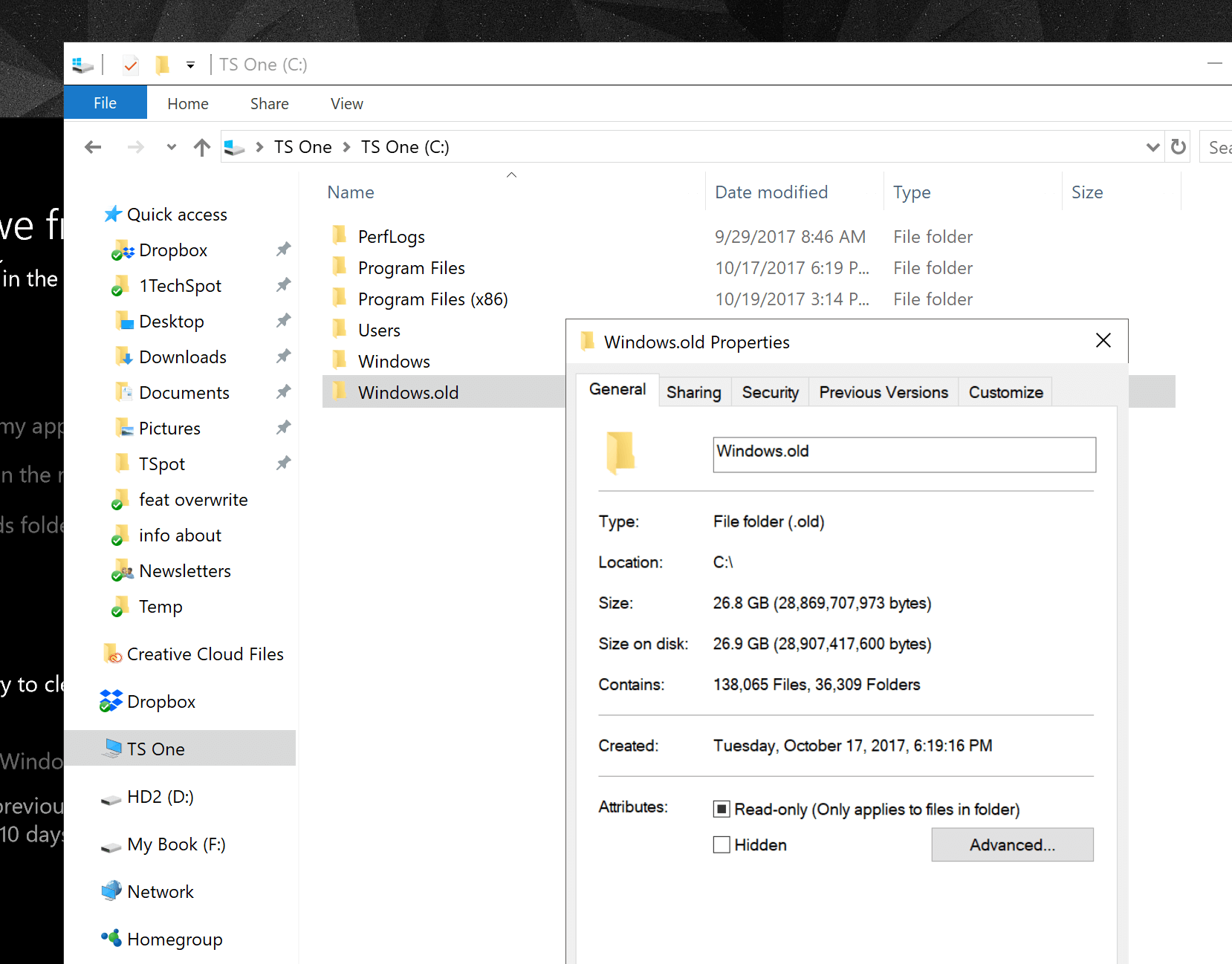
Now, something that may not be as obvious is that the big update is treated almost like a Windows upgrade. To keep on the safe side, Microsoft's install setup saves a full copy of your current Windows installation (that's the Windows.old directory right there), and while this will come handy in case something goes wrong or you need to revert back, it will also occupy several gigabytes of precious storage.
This is not new to Windows 10, but it is somewhat surprising to see a full backup performed after a mere update which in Microsoft's eyes may be more akin to Service Packs of yesteryear. If you have plenty of free space and don't mind the untidiness, you can simply ignore the folder and it should be deleted automatically 30 days after the update. If you think you may want to revert back changes, deleting this folder will take away that option from your hands as well.
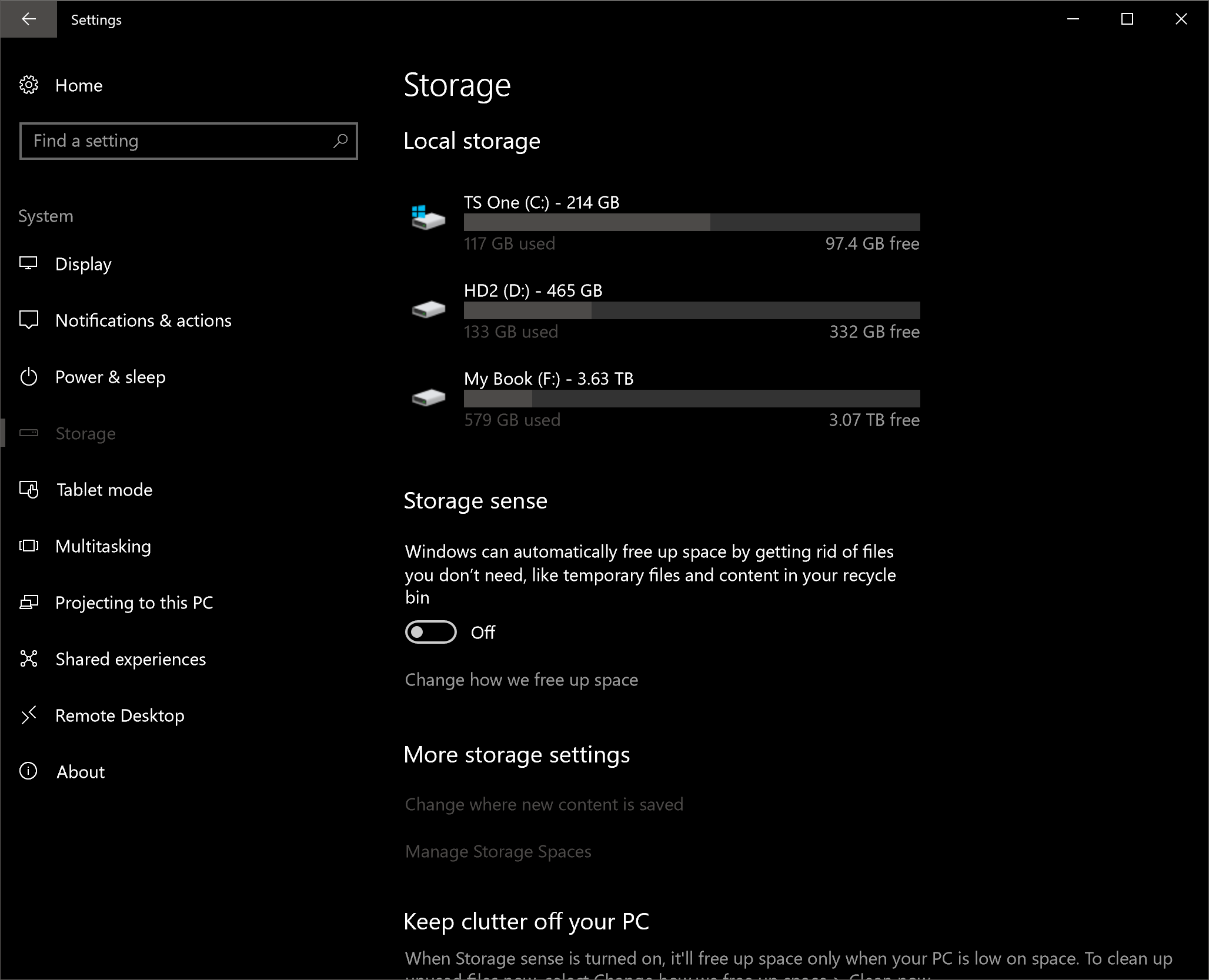
But if you are strapped for storage space, you can use Windows' own tools to remove it. In fact, as part of the Fall Creators Update, Microsoft has kept adding more options to the Windows Settings which is slowly becoming a de-facto, more user friendly version of the full Control Panel. A new option in Settings called "Storage sense" is meant to help you reduce clutter and save storage space. It also allows manual runs for deleting temporary files and removing the Windows.old folder with a few clicks. Here's how you do it:

For Windows 10 Fall Creators Update and later

Step 1. Go to Settings, then choose System.
Step 2. From the left side menu, choose Storage.
In the section 'Storage sense' click where it says "Change how we free up space"
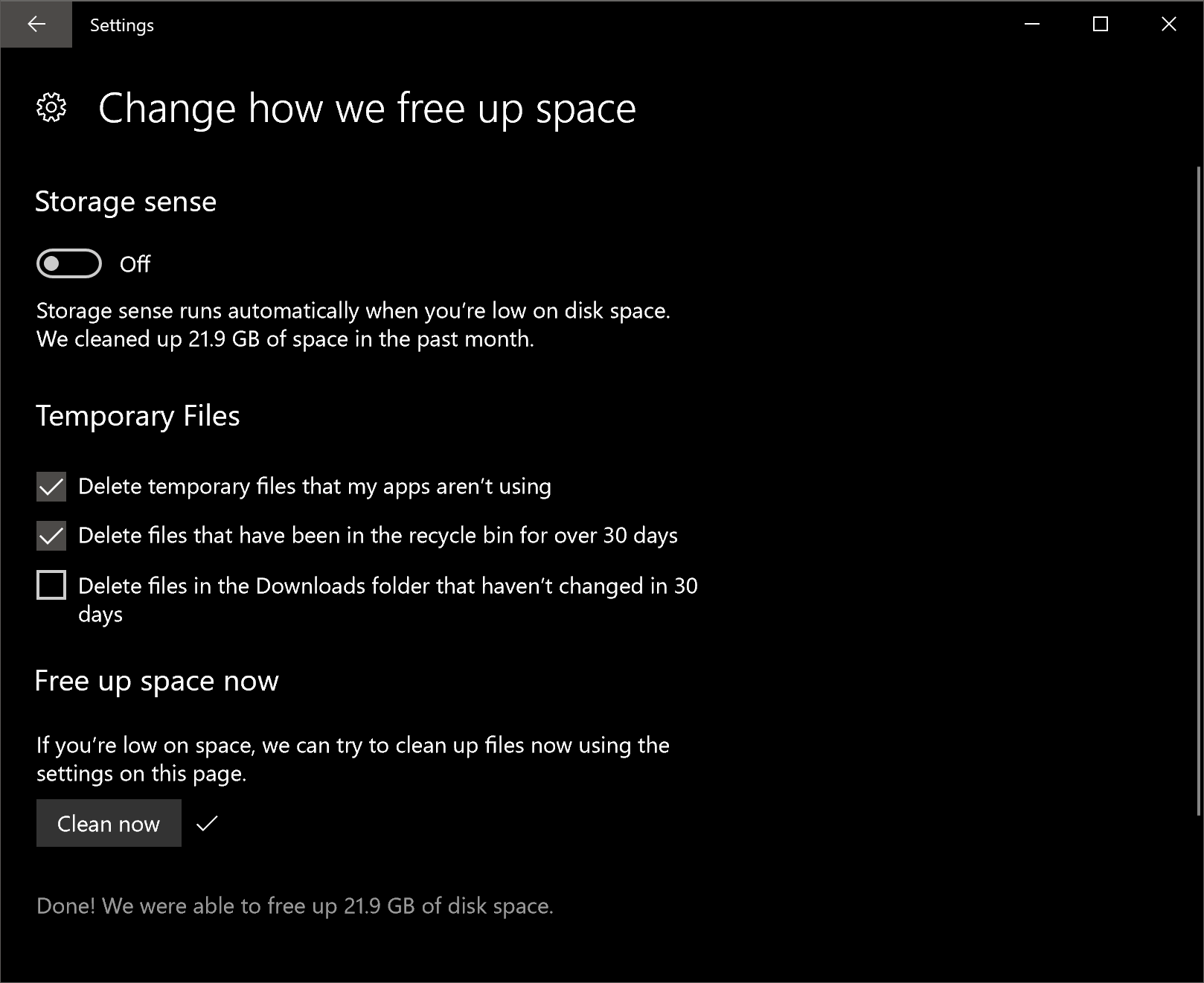
Step 3. Under "Free up space now," you can select the option to delete the previous installation of Windows 10.
Then click on the button "Clean now."
Step 4. Wait for Windows to gather the files and delete them. Afterwards it will show a message when it's done.
On my 256GB SSD, I was able to free up almost 22GB of space.
Step 5. Storage sense is a new OS feature that is disabled by default, but in this section you will learn what it does and how it might make be good for you to enable it to delete temporary files, empty the recycle bin after a certain period of time, or even files in the Downloads folder. We'll leave that decision up to you.

Alternative Way of Removal (works in previous Windows versions)

If you try to delete the Windows.old directory using File Explorer, the OS will prevent you from doing so as they are considered system files. You could bypass these after meddling with permissions settings, but there's no need to do that...
Step 1. Go to Start and type 'Disk Cleanup'.
Step 2. Open Disk Cleanup and select your main system drive.
The tool will scan your drive for unnecessary files and old cached data. However the Windows.old directory won't be accounted for.
Step 3. Select the option "Clean up system files" near the bottom of the window. Select your main drive again and the scan process will be repeated.
Step 4. The result of the scan will display different types of data, from Recycle Bin files to temporary internet cache. This time around, "Temporary Windows installation files" will be there, accounting from as little as 9GB to as much as 25GB, or more.
Step 5. Select all the files you want to remove, including the Windows installation files. Click OK. Then confirm the subsequent prompts.
If you are using a modestly sized SSD, you'll appreciate gaining the extra space back.

Saturday, October 21, 2017

বিদ্যুৎ গতিতে কম্পিউটার চালনা কারতে চাইলে দেখুন


আজ আমি আপনাদের কম্পিউটার এর “command Prompt” এই কিছু দরকারি কমান্ড দিব। আপনারা অনেকই হয়তো যানেন, আবার অনেক এ হয়েত যানেন না। যারা যানেন না এই পোস্ট তাদের জন্য।
কম্পিউটার এর দ্রুত চালনা করার জন্য আপনি এই অপশন টি ব্যাবহার করতে পারেন।
cmd – Command Prompt অপশনটি চালু করার জন্য। 

Sunday, October 15, 2017

বায়োস (BIOS )কি? আমরা কতটুকু জানি --

 
বায়োস হলো বেসিক ইনপুট আউ্টপুট সিস্টেম (Basic Input Output System) এর সংক্ষিপ্ত । বায়োস মূলতঃ একটি রম চীপের ফার্মওয়্যার যাতে কম্পিউটার বুট হওয়ার জন্য নির্দেশনাগুলো দেওয়া থাকে। এটি মূলতঃ একটি চীপ আকারে মাদারবোর্ডের সাথে লাগানো থাকে। সফটওয়্যারটি মাদারবোর্ড নির্মাতা প্রতিষ্ঠান প্রদান করে থাকে। এবং এটি সাধারনত EEPROM.


কি কাজ করে? - 


  • কম্পিউটার চালু হওয়ার সাথে সাথেই রম থেকে এই সফটওয়্যারটি চালু হয়ে যায়। এবং কম্পিউটার কম্পোনেন্ট লিস্ট তৈরী এবং সাধারন চেকিং গুলো করে থাকে।
  • একাধিক ডিস্ক ড্রাইভ এর মধ্য থেকে কোনটি থেকে অপারেটিং সিস্টেম চালু হবে তা নির্ধারণ করে দেওয়া যায় এবং সেটি থেকে বুট হয়।
  • এছাড়া বায়োস থেকে বিভিন্ন পোর্টগুলো বন্ধ বা খোলা রাখা যায়। চাইলে USB পোর্ট বন্ধ করে দেওয়া যাবে।
  • বায়োসেই মূলতঃ সিস্টেম সময়ের ঘড়িটি থাকে। কম্পিউটারে আমরা যে ঘড়িটি দেখি সেটি মূলতঃ সেই ঘড়িই। কম্পিউটার বন্ধ হলেও বায়োস ঘড়িটি চলতে থাকে। CMOS ব্যাটারীর মাধ্যমে এই ঘড়িটি চালে হয়।
  • বায়োস কম্পিউটারের বিভিন্ন সমস্যায় আপনাকে ডিসপ্লে এবং সিস্টেম স্পিকারের মাধ্যমে জানিয়ে দিবে। যেমন- কম্পিউটার চালু হওয়ার জন্য প্রয়োজনীয় অপারেটিং সিস্টেম না পেলে Boot Failure মেসেজ দিবে। বা র‌্যাম না থাকলেও স্পিকারের মাধ্যমে বিপ দিবে।
Join Our Newsletter