M.A Al-Noman

Dhaka, bangladesh

Get Update on our recent Tips & Posts

Showing posts with label Internet Tips. Show all posts

Thursday, April 23, 2020

মুভির প্রিন্টের সকল টার্ম | কোন প্রিন্ট দিয়ে কি বুঝায় | যেসব প্রিন্টের মুভির ডাউনলোড করা উচিৎ

 
🔔প্রতিনিয়ত মুভি ডাউনলোডের ক্ষেত্রে একটি বিষয় নিয়ে সকলেই চিন্তিত। তা হলো মুভির প্রিন্ট। কোন প্রিন্ট ভালো , কোন প্রিন্ট মন্দ। কোনটি হল প্রিন্ট। কোনটি সবচেয়ে ভালো প্রিন্ট। অনেকেই না বুঝে মুভি ডাউনলোড করার পর প্রিন্ট খারাপ হলে উক্ত সাইট কে দোষারপ করেন। কিন্তু , এটা জানেন না যে , তিনি নিজেই ভুলবসত বাজে ফাইল ডাউনলোড করেছে। তাহলে করনীয় কি? এরকম অনেক প্রশ্নই মাথায় ঘুরেফিরে। তাই আমরা আজ সেসব কনফিউশন দূর করার চেষ্টা করবো।
মুভির বিভিন্ন প্রিন্টঃ-

যেমন একটি মুভির ফাইলের পুরো নামঃ
📽The Matrix (1999) BluRay H264 (x264) .mkv
📽The Matrix (1999) HDRip H265 (x265) .mp4
📽The Matrix (1999) DVDRip XviD. avi

উপরের ফাইলের নামগুলোর সাথে আমরা সবাই কমবেশি পরিচিত। আপনার ফোনে বা পিসিতে যেকোন মুভির ফাইলের নামগুলো এরকম ই হয়। তো এগুলো দিয়ে কি বুঝায় , তাই আজ জানবো।

১। প্রথমেই রয়েছে মুভির নামঃ- The Matrix (1999)
২। তারপর প্রিন্টঃ- BluRay , HDRip , DVDRip
৩। এরপর রয়েছে কোডেকঃ- H264 x265 H265 XviD
৪। শেষে রয়েছে ফাইল ফরমেটঃ- .mkv .mp4 .avi

🎁প্রথমেই জেনে নিব মুভির প্রিন্ট সম্পর্কে 🎁


💬CamRip / DVDScr / PREDVDRip / DesiCam / HDCam / HDTS
যদিও এগুলোর নাম ভিন্ন , তবে সবগুলো প্রায় একই। সবগুলোই হল (Hall) প্রিন্ট। ক্যামরিপ , ডিভিডি-স্ক্রীন , দেশিরিপ এগুলো সবচেয়ে নিন্মমানের হল প্রিন্ট। প্রী-ডিভিডিরিপ , এইচডিক্যাম , HDTS এগুলো বেশ ভালো মানের হল প্রিন্ট। মোটামুটি ভালোমতই দেখা যায়।

💬 HDTC প্রিন্ট
এটি এক প্রকার প্রিন্ট , যা সিনেমার রীল হতে রিপ করা হয়। মানে সিনেমার রীল হতে সরাসরি রিপ করা হয় ভালো ক্যামরা দ্বারা। আর সাউন্ড ব্যবহার করা হয় এক্সটার্নালভাবে। এতে সাউন্ড ও ভালো হয় এবং প্রিন্ট ও।

💬 অ্যানালগ টু ডিজিটাল প্রিন্ট | HDRip , HDTV , TVRip , PDTV , DTH , SDTV , SAT , DVBR
ইত্যাদি সকল ফাইল অ্যানালগ সোর্স হতে রিপ করা হয়। যেমন টিভিতে টিভি কার্ড লাগিয়ে রেকর্ড করা হয়। এগুলোই উক্ত ফাইলসমূহ। তবে সব ফাইলের কোয়ালিটি এক নয়।
HDRip , HDTV , SAT , DVBR এবং PDTV খুবই ভালো মানের প্রিন্ট। একদম ক্লিয়ার হয়।
DTH , TVRIP এসব ফাইল মোটেও অত ভালো হয় না। এসব ফাইলে অ্যাডভার্টাইজ থাকে। যার জন্য বিভিন্ন মুভির ফাইলে আমরা হারবাল এর অ্যাডভার্টাইজ দেখতে পাই


💬 রাশিয়ান রিপড | R5 / R5.LINE / R5.AC3.5.1.HQ
সহজ ভাবে বোঝালে, ইংরেজি যেসব দেশের মূল ভাষা নয় , সেসব দেশ থেকে পাওয়া TELECINE প্রিন্ট। তবে , এখানে ফিল্ম থেকে সরাসরি ডিজিটাল প্রিন্টে আনা হয় , এরপর অনেকসময় লোকাল ভাষা বাদ দিয়ে সেখানে অন্য কোন প্রিন্ট থেকে ইংরেজি অডিও সংগ্রহ করে যোগ করে দেয়া হয়। সম্ভবত রাশিয়ান এনকোডার রা এটা করে থাকে। ওইকিপিডিয়াতে এটা নিয়ে বড় আর্টিকেল রয়েছে।

💬ওয়েব ফাইল – ডিজিটাল প্রিন্ট | WEB-DL | WEB-RIP | WEB-HD
WEB-DL হলো অরিজিনাল ডিজিটাল ফাইলের কপি। যেমন iTunes , Amazon , NetFlix এসব হতে যেসব মুভি বা ফাইল আমরা পেয়ে থাকি। সেগুলোই WEB-DL ফাইল। এসব ফাইল যেকোন ডিভিডিরিপ ফাইলের চেয়েও ভালো। এসব ফাইলে iTunesRip লিখা থাকলে বুঝতে হবে এটা iTunes হতে রিপ করা। AMZN WEB-DL থাকলে বুঝতে হবে Amazon Prime এর ফাইল। WEB-DL NF থাকলে বুঝতে হবে এটা Netflix এর ফাইল।
WEB-HD/WEBRIP হলো ডিজিটাল প্রিন্টের ই স্ট্রিমিং ভারশন। এটিও মন্দ নয়। তবে এটি স্টিমিং ফাইল হয়াতে কোয়ালিটি অতটা ভালো হয় না। কারণ , অনলাইন স্ট্রিমিং এ কম ডেটাতে ফাইল দেয়া হয় , যাতে স্লো ইন্টারনেট হলেও স্ট্রিম করা যায়।

💬 পে পার ভিউ | PPVRip
পে পার ভিউ – সোজা কথায় পেইড টেলিক্যাস্ট হয়া কন্টেন্ট। WEB-DL এর মত। যেসব সোর্স হতে ডিজিটাল ফাইল পাওয়া যায়। সেসব ফাইল WEB-DL ও আবার PPV ও। শুধুমাত্র পার্থক্য এই যে , যেসব মুভি DVD র জন্য রিলিজ হয় নি , শুধুমাত্র ডিজিটাল প্রিন্ট রিলিজ হয়েছে যা পেইড , সেটাই PPV ফাইল।

💬 DDC প্রিন্ট | ডিজিটাল প্রিন্টের কপি
Digital Distribution Copy or
Downloadable/Direct Digital Content বলা হয় একে। এটি ডিজিটাল প্রিন্টের একটি কপি। এই কপি অত ভালো না হলেও হল প্রিন্টের চেয়ে ব্যাটার। আবার IP বা FTP দিয়ে পাঠানো ফাইল ও DDC.

💬 VODRip | ভিডিও অন ডিমান্ড
সেম টু সেম Amazon , Netflix , iTunes. ডিজিটাল প্রিন্ট। যেসব অনলাইন মিডিয়া ডিজিটাল কন্টেন্ট রিলিজ করে , সেসব রিপ ই হলো VODRip. এগুলোই WEB-DL রূপে বের হয়।

💬 WEBcap | WEB-CAP
এটি স্ট্রিমিং ফাইল কে স্কিন রেকর্ড করার প্রোসেস। ব্যাস। আর কিছুই নয়।

💬 DVDRip / ডিভিডি / DVD R / HD DVD
এই প্রিন্টের সাথে সবাই পরিচিত। যেকোন মুভির মাস্টারপ্রিন্ট বা BluRay রিলিজের আগে ডিভিডিতে একটি ফাইল রিলিজ দেয়া হয় , সেটির সাইজ ও কম হয়। কোয়ালিটি অনেক ভালো হয় যেহেতু অফিসিয়াল ফাইল। এটি মূলত সোর্স = মুভির মূল ফাইলের উপর ডিপেন্ড করে। মূল ফাইল ভালো হলে DVD কপিও ভালোই হয়। আর এই DVD ফাইল কে রিপ করাই হলো DVDRip. এটি সাধারণত 720P হয়ে থাকে।

💬 BluRay | BRRip | BDRip | BDREMUX | BD25 | BD9 | BD5 | BDMV | BD50
ইত্যাদি সকল ফাইল হলো মুভির অরিজিনাল ব্লুরে ফাইল। এটিই মুভির অরিজিনাল ফাইল।
BluRay , BRRip = BluRay Rip , BDRip = BluRay Disk Rip এগুলো সব একই।
BDREMUX = মুভির সকল অরিজিনাল ফাইল একত্রে করে আলাদা ফাইল বানানো হয় , যেখানে মুভির অরিজিনাল ফাইল হতে অপ্রয়োজনীয় ফাইলগুলো রিমুভ করে ফাইল সাইজ কমিয়ে ফেলা হয়।
যেকোন মুভির ব্লুরে ফাইল হলো একদম ঝকঝকে চকচকে একটি ফাইল সাথে থাকে অরিজিনাল অডিও।
এই ছিল মুভির প্রিন্টের প্রকারভেদ।
এবার জানবো কোডেক নিয়ে। 
 XviD – পুরাতন কোডেক। আজকাল তেমন ব্যবহার দেখা যায় না। এই কোডেক এর ফাইলের সাইজ অনেক বেশি হয় , তবে ফাইল অত ভালো হয় না। কারণ , কম ডেটা রাখা যায়।
 H264/X264 – এটি একটি স্ট্যাবল ভিডিও কোডেক এবং বহুল পুরাতন। এতে মোটামুটি কম স্টোরেজ এ বেশি ডেটা রাখা যায়।
 H265/X265/HEVC – বর্তমান প্রজন্মের জনপ্রিয় ফাইল কোডেক। কারণ , এতে একদম কম স্টোরেজ এ অনেক বেশি ডেটা রাখা যায়। যদি x264 কোডেক এ কোন ফাইলের সাইজ ২ জিবি হয়। তাহলে HEVC তে সেটা 1300-1400 এমবিতে এসে যায়। সাশ্রয়ী 
 এই ছিল আজকের আর্টিকেল। শিক্ষার শেষ নেই। হোক সেটা মুভির ফাইল রিলেটেড। ধন্যবাদ যদি ভালোলেগে থাকে আর্টিকেল টি।

Thursday, October 18, 2018

Auto Re-Connect Dial-Up/Broadband/PPPoE connection when Disconnected from Network

 
Open Event Viewer – Hold “Win+Q” and search for Event Viewer or press “Win+R” and enter “eventvwr.msc
auto connect internet dialup pppoe broadband automatically when disconnected in Windows 7 8 10
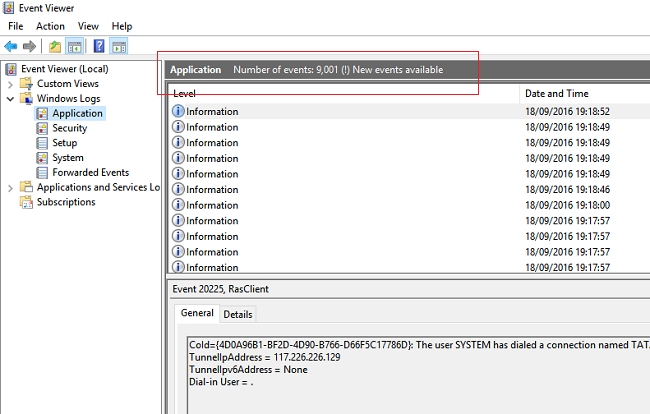
On Event Viewer Select Windows Logs – Application and Keep this screen open and goto your connected internet connection Dial-Up or PPPoE and click Disconnect.
auto connect internet dialup pppoe broadband automatically when disconnected in Windows 7 8 10
Go back to Event Viewer Tab and there you will see New Events available, as shown in the image below. Hit refresh from right side option or press F5 to refresh.
auto connect internet dialup pppoe broadband automatically when disconnected in Windows 7 8 10
You will get a new event which shows event ID and type of event when your internet got disconnected as show in below image.
auto connect internet dialup pppoe broadband automatically when disconnected in Windows 7 8 10
Right click on New event or first event from the list and select Attach Task To This EventClick Next,
auto connect internet dialup pppoe broadband automatically when disconnected in Windows 7 8 10
Below Image shows Log as Application, Source RasClient (Remote access server) and Event ID.
auto connect internet dialup pppoe broadband automatically when disconnected in Windows 7 8 10
Once you press Next , the wizard will ask you what Program / Script you want to execute on a scheduled basis.
In order to make Windows 10 automatically dial a broadband PPPoE connection, when you log into your Windows 10 computer, you must enter the following information:


In the "Program/script" field, enter the command:C:\windows\system32\ rasdial.

In the "Add arguments (optional)" field, enter the name of your broadband PPPoE connection, between quotation marks, followed by your broadband connection username and password, each with a space before them. For instance, let's say that your broadband PPPoE connection has the default name of Broadband Connection, your username is NY123456, and your broadband connection password is NewYork. In such a case, the "Add arguments (optional)" field should contain this text: "Broadband Connection" NY123456 NewYork.

Leave the "Start in (optional)" field empty.
You can view and edit this task from Task Scheduler under Event Viewer Tasks as shown in below image.
auto connect internet dialup pppoe broadband automatically when disconnected in Windows 7 8 10
This tutorial applies to Windows 7, 8.1 and Windows 10. If you face any problem while setup, please ask your error or problem in below comment box.

Saturday, May 19, 2018

How to automatically dial a broadband PPPoE connection in Windows 10

 
In a previous tutorial we've shown you how to set, configure and connect to a broadband PPPoE connection in Windows 10. While the whole process of connecting is easy, it does need to be performed manually, each time you want to connect to the Internet. That also means that you have to manually start your broadband PPPoE connection each time you boot your Windows 10 computer. That's an extra step that many of our readers won't want to make and we would like to share a way to make a Windows 10 computer automatically dial a broadband PPPoE connection, during startup. We've looked for a method that works well and here it is:
NOTE: In this guide, we assume that you have already created and configured a broadband PPPoE connection on your Windows 10 computer. If you did not, you might want to check this tutorial first: How To Setup And Use PPPoE Internet Connections In Windows 10.
In order to make your Windows 10 computer automatically dial your broadband PPPoE connection each time it starts, you will have to go through a few steps that involve setting a scheduled task:

Step 1. Launch the Task Scheduler in Windows 10

First, you need to start the Task Scheduler. A fast way to do that is to use Cortana's search box. Use it to type the words "task scheduler" and then, from the list of search results, click or tap Task Scheduler.
Windows 10, PPPoE, automatic, dial, startup
You can also launch Task Scheduler from the Start Menu. Open All apps , go to Windows Administrative Tools and click or tap on Task Scheduler.
Windows 10, PPPoE, automatic, dial, startup
If you prefer using the traditional Control Panel , you can launch Task Scheduler by going to: Control Panel -> System and Security -> Administrative Tools.
Windows 10, PPPoE, automatic, dial, startup
Regardless of the method you chose to follow in order to launch the Task Scheduler , this is what you should get:
Windows 10, PPPoE, automatic, dial, startup

Step 2. Schedule the automatic dial of a broadband PPPoE connection, each time you log into Windows 10

Now you have to schedule the automatic dial of your broadband PPPoE connection, each time you log into Windows 10.
In the Task Scheduler , click or tap on the Create Basic Task… option from the right side of the window.
Windows 10, PPPoE, automatic, dial, startup
This action will open the Create Basic Task Wizard.
The first thing you need to do is enter a name for your task. The name we used, for instance, is "Auto Dial - Broadband Connection". If you want, you can also enter a Description , but that's entirely optional. Then, press Next.
Windows 10, PPPoE, automatic, dial, startup
Next, you must choose when the scheduled task will be triggered. To make your broadband PPPoE connection dial automatically, each time you log into Windows 10, you should select the "When I log on"option. Then, press Next.
Windows 10, PPPoE, automatic, dial, startup
And now comes the most important part of the schedule wizard - choosing the action to be run. As we want to automatically dial a broadband PPPoE connection, we must find a way to tell that to Windows 10. Start by choosing to "Start a program".
Windows 10, PPPoE, automatic, dial, startup
Once you press Next , the wizard will ask you what Program / Script you want to execute on a scheduled basis.
In order to make Windows 10 automatically dial a broadband PPPoE connection, when you log into your Windows 10 computer, you must enter the following information:
  1. In the "Program/script" field, enter the command: rasdial.
  2. In the "Add arguments (optional)" field, enter the name of your broadband PPPoE connection, between quotation marks, followed by your broadband connection username and password, each with a space before them. For instance, let's say that your broadband PPPoE connection has the default name of Broadband Connection, your username is NY123456, and your broadband connection password is NewYork. In such a case, the "Add arguments (optional)" field should contain this text: "Broadband Connection" NY123456 NewYork.
  3. Leave the "Start in (optional)" field empty.
Windows 10, PPPoE, automatic, dial, startup
Then, once you press the Next button, the Create Basic Task Wizard will give you a summary of your newly created scheduled task. Check that everything is OK and click or tap Finish.
Windows 10, PPPoE, automatic, dial, startup
When you close the wizard, you will be brought back to the main Task Scheduler console, where you can see that your new task has been added to the list of scheduled tasks.
Windows 10, PPPoE, automatic, dial, startup

Step 3. Reboot your Windows 10 computer or device

Finally, all you there's left for you to do is reboot your Windows 10 device and see how your newly scheduled task is run . Note that, depending on how fast the dialing process is performed, when you log into your Windows 10 computer, you might briefly see a window similar to the one below.
Windows 10, PPPoE, automatic, dial, startup
The broadband PPPoE connection should now be automatically dialed each time you log into Windows 10.

Conclusion

While it does require some advanced steps for you to t ake , configuring Windows 10 so that it automatically dials a broadband PPPoE connection when you log in can be done by anyone, if you follow this guide carefully. Once you've created your scheduled task, everything should work well and you'll get almost instant Internet access each time you log into Windows 10. If you have any questions or issues, you can always get in touch with us using the comments form below.

How to setup and use PPPoE internet connections in Windows 10

 
Many Internet Service Providers (ISPs) from around the world offer their internet services to residential users through Point-to-Point Protocol over Ethernet or PPPoE connections. In order to be able to use such internet connections, the ISP usually gives you a unique username and password that you must use to connect to their network. In this tutorial we're going to show you all the steps you need to take in order to properly configure your Windows 10 device to connect to the internet through PPPoE .

How to launch the “Connect to the Internet” wizard

To be able to setup a PPPoE connection in Windows 10, you will first have to launch the "Connect to the Internet" wizard. To begin, launch Settings.  If you're in a hurry and don’t have time to read that article, a quick way to open the Settings app in Windows 10 is to click or tap on its shortcut from the Start Menu.

Windows 10, PPPoE, connection, create, configure


Inside Settings , head to the Network & Internet section.

Windows 10, PPPoE, connection, create, configure

Then, select Dial-up from the list of options on the left.

Windows 10, PPPoE, connection, create, configure

On the right side of the window, click or tap on the " Set up a new connection" link from the Dial-upsection.

Windows 10, PPPoE, connection, create, configure

The "Set Up a Connection or Network" wizard opens.

Windows 10, PPPoE, connection, create, configure

There is also another way of opening the "Connect to the Internet" wizard: by using the Control Panel. Then, open Network and Internet , and click or tap on the Network and Sharing Center.

Windows 10, PPPoE, connection, create, configure

Here, click or tap on the " Set up a new connection or network" link, from the " Change your networking settings" section.

Windows 10, PPPoE, connection, create, configure

Regardless of the method you chose to launch the " Connect to the Internet" wizard, the following steps you'll have to take are the same. Here's what you have to do:

How to setup a PPPoE internet network connection in Windows 10

From the list of available connection options, select " Connect to the Internet" , and click or tap the Nextbutton.

Windows 10, PPPoE, connection, create, configure

In the " Connect to the Internet" window, click or tap on Broadband (PPPoE).

Windows 10, PPPoE, connection, create, configure

We've now arrived at the place where you provide the settings of your PPPoE connection. The most important things to do are to type the User name and Password given to you by your ISP.

Windows 10, PPPoE, connection, create, configure

You'll also find some additional options that you can change:
  • You can check the “ Show characters” option if you want to see your password, to be sure that you typed it correctly.
  • If you don't want your Windows 10 computer to ask you for your password each time you connect to the internet, you can set it to " Remember this password".
  • By default, Windows 10 gives your PPPoE connections the name Broadband Connection. However, if you'd like to use another name, enter the one you want in the Connection name text field.
  • Finally, if you want your newly set PPPoE connection to be available for all the people who have access to your computer, check the last option that says: " Allow other people to use this connection". However, note that, in order to be able to enable this option, you'll need to have administrative rights.
Once you've made all the settings, click or tap on Connect to initiate the PPPoE connection .

Windows 10, PPPoE, connection, create, configure

The wizard will go through a few steps, like verifying your username and password and testing your internet connection.

Windows 10, PPPoE, connection, create, configure

If everything worked well, the wizard will notify you that now "The connection to the Internet is ready to use".

Windows 10, PPPoE, connection, create, configure

Next, if you click or tap on the " Browse the Internet now" , Windows 10 will open your default browser and you can start surfing the web. The other option you have is to simply close the wizard. The PPPoE connection is now up and running, so you can go ahead and use any web browser, or any app or program that needs Internet access.

How to connect to a PPPoE internet connection in Windows 10

Now that you've set up your PPPoE network connection, you can use it anytime you want to access the internet. But there is a catch: to be able to use it, you will need to connect to it each time you need it. Here's how to do that:
Click or tap on the Network icon from the notification area on your taskbar, and then click or tap on the PPPoE connection you want to connect to. If you didn't change its default name, the connection should be called Broadband Connection.

Windows 10, PPPoE, connection, create, configure

The previous action will trigger the launch of the Settings app and take you to the Dial-up section. In here, click or tap on your PPPoE connection, found on the right side of the window.

Windows 10, PPPoE, connection, create, configure

To initiate the PPPoE connection, click or tap on Connect.

Windows 10, PPPoE, connection, create, configure

If you asked Windows 10 to remember your PPPoE connection credentials when you've set the connection, then your computer will automatically connect to the internet. However, if you did not make that selection, you will now have to enter the username and password for the PPPoE connection.

Windows 10, PPPoE, connection, create, configure

Either way, once your Windows 10 computer is connected, you'll be brought back to the Network & Internet section of the Settings app. Here, you can see the Connected message displayed under your PPPoE connection.

Windows 10, PPPoE, connection, create, configure

How to disconnect from a PPPoE internet connection in Windows 10

To disconnect from a running PPPoE connection in Windows 10, you'll have to follow the exact same steps we've shown in the previous section of this tutorial. That means you'll have to click or tap on the Networks icon from your taskbar, and then click or tap on your PPPoE connection. And finally, once you've reached the Dial-up options, instead of pressing the Connect button, you will need to click or tap on Disconnect.

Windows 10, PPPoE, connection, create, configure

There are no other steps involved in this process. Once you've pressed Disconnect , Windows 10 will simply close the connection.

How to delete a PPPoE connection from Windows 10

At some point you might decide to completely remove a PPPoE connection you've set up on your Windows 10 computer. To do that, open the Settings app, then go to the Network & Internet section and head to your Dial-up options.
Here, if needed, disconnect from your PPPoE connection, and then click or tap on the Remove button.

Windows 10, PPPoE, connection, create, configure

Windows 10 will notify you that "If you remove this VPN connection, you'll need to set it up again to reconnect". As you might have noticed, there's a small typo in Windows 10's message: it says VPN, but in fact you'll be removing your PPPoE broadband connection. :)
If you're sure that you want to continue, click or tap on Remove and the PPPoE connection will be permanently deleted.

Windows 10, PPPoE, connection, create, configure

Conclusion

As you've seen in this guide, setting up, using and removing PPPoE broadband connections in Windows 10 are all easy things to do. However, we must admit that we would've liked it better if all the connecting and disconnecting could be done straight from the Networks popup on the taskbar. Having to go through the Settings app to do that seems an unnecessary annoyance in our opinion. What do you think?

Saturday, October 14, 2017

গুগলকে শুধু সার্চ ইঞ্জিন নয়, ব্যাবহার করুন নিজের কাজেই!!

 
কোন তথ্য খুঁজে পেতে আমরা সবাই গুগলের সাহায্য নিয়ে থাকি। তবে গুগলে কিছু বিশেষ কীওয়ার্ড রয়েছে যা আপনার গুগলে সার্চ দেওয়ার অভিজ্ঞতাই বদলে দেবে।
১. খুব সহজে টাইমার তৈরি করতে পারেন গুগলে।

২. কোন শিল্পীর কিংবা ব্যান্ডের গানের তালিকা সহজেই পেতে পারেন গুগলে।

৩. প্রিয় লেখকের বইয়ের তালিকা দরকার ? সাহায্য নিন গুগলের।
৪. ফ্লাইটের তথ্য দেখতে পারেন গুগলের মাধ্যমে।

৫. আগামীকাল সূর্যোদয় কখন ? গুগলকে জিজ্ঞাসা করে দেখুন।
৬. বিখ্যাত প্রতিষ্ঠানের প্রতিষ্ঠাতার নাম জানতে চান ? গুগল করেই দেখুন।
৭. Recursion লিখে গুগলে সার্চ দিলে গুগলের মাথা খারাপ হয়ে যায় নাকি ?
৮. Festivus লিখে সার্চ দিন, বাম পাশে একটি অ্যালুমিনিয়াম বার দেখাবে।
৯. zerg rush লিখে সার্চ দিলে গেম শুরু হয়ে যাবে সার্চ রেজাল্ট পেজে।
১০. কোন শব্দের উৎপত্তি এবং বিস্তারিত পেতে চাইলে নিচের মত চেষ্টা করে দেখতে পারেন।
১১. দুটি খাবারের তুলনা করতে গুগল বেশ পারদর্শী।
Join Our Newsletter